
Caddy as a Reverse Proxy: From 3 Lines to a Real Setup
Caddy is probably the easiest reverse proxy I have used so far.
That does not mean it is only useful for tiny setups. My KoalaStuff server uses Caddy for static sites, Docker apps, redirects, custom headers, access logs, API proxying, service worker caching and a few other little quality-of-life things.
But the nice part is: you do not have to start with all of that.
You can start with this:
my.domain.com {
    reverse_proxy my-app:3000
}
And that is already a working reverse proxy with HTTPS.
First: what this tutorial assumes
Before the config examples, there are a few small things that are easy to forget when you already know them.
This post assumes:
- you have a domain or subdomain pointing to your server
- ports
80and443are reachable from the internet - Caddy is running on the same server as your apps
- your apps are usually running in Docker
- your Docker containers share a network with Caddy
In my setup, that shared Docker network is called caddy_net.
That part matters because it decides whether you can use Docker container names like this:
reverse_proxy ghost_blog:2368or whether you need to use an IP address instead:
reverse_proxy 192.168.178.50:2368If Caddy and the app are in the same Docker network, Caddy can reach the app by its container or service name.
If they are not in the same Docker network, Caddy has no idea what ghost_blog is. In that case, use the local IP address and port instead.
Caddyfile is not YAML
A docker-compose.yml file is YAML. Indentation matters a lot there.
A Caddyfile is not YAML. It just uses blocks with { }, which can make it look a little bit YAML-ish if you squint at it.
The smallest useful reverse proxy
The simplest useful Caddy reverse proxy looks like this:
my.domain.com {
    reverse_proxy my-app:3000
}
If your DNS points my.domain.com to your server and Caddy can reach my-app:3000, this already does the important stuff:
- accepts requests for
my.domain.com - gets HTTPS certificates automatically
- forwards traffic to your app
- sends the response back to the visitor
For a lot of small self-hosted apps, that is already enough.
For example, if you run something like Uptime Kuma in Docker and the service is called uptime-kuma, your Caddy block might be:
status.example.com {
    reverse_proxy uptime-kuma:3001
}
That is the part I like about Caddy. You do not need a giant config file just to put one app behind HTTPS.
Docker names vs IP addresses
This is probably the most common beginner mistake.
This works:
my.domain.com {
    reverse_proxy my-app:3000
}
But only if Caddy can resolve my-app.
In Docker, that usually means both containers are in the same Docker network.
A simplified docker-compose.yml could look like this:
services:
  caddy:
    image: caddy:latest
    container_name: caddy
    ports:
      - "80:80"
      - "443:443"
    networks:
      - caddy_net
    volumes:
      - ./Caddyfile:/etc/caddy/Caddyfile
      - caddy_data:/data
      - caddy_config:/config

  my-app:
    image: your-app-image
    container_name: my-app
    networks:
      - caddy_net

networks:
  caddy_net:
    external: true

volumes:
  caddy_data:
  caddy_config:
In my case, I use one shared Docker network called caddy_net and attach the services that should be reachable by Caddy.
Then Caddy can use names like:
reverse_proxy ghost_blog:2368
reverse_proxy uptime-kuma:3001
reverse_proxy casdoor:8000
If your app is not in the same Docker network, use an IP address:
my.domain.com {
    reverse_proxy 192.168.178.50:3000
}
There is nothing wrong with that. Docker names are just cleaner when everything runs on the same Docker host.
Adding compression
The next small upgrade is compression.
my.domain.com {
    encode zstd gzip
    reverse_proxy my-app:3000
}
This tells Caddy to compress responses when the browser supports it.
I usually add this to most of my sites because it is simple and saves some bandwidth.
Adding basic security headers
You can also let Caddy add HTTP headers.
A small baseline could look like this:
my.domain.com {
    encode zstd gzip

    header {
        Strict-Transport-Security "max-age=31536000"
        X-Content-Type-Options "nosniff"
        Referrer-Policy "strict-origin-when-cross-origin"
        -Server
    }

    reverse_proxy my-app:3000
}
What these do:
Strict-Transport-Security tells browsers to prefer HTTPS for this domain.
X-Content-Type-Options "nosniff" tells browsers not to guess file types.
Referrer-Policy limits how much referrer information gets sent to other sites.
-Server removes the Server header.
A small warning about HSTS: do not blindly add includeSubDomains; preload unless you understand what that means. It can affect all subdomains and is annoying to undo if you set it too early.
For a first setup, keep it simple.
The problem with repeating yourself
If you have one domain, this is fine:
my.domain.com {
    encode zstd gzip

    header {
        X-Content-Type-Options "nosniff"
        Referrer-Policy "strict-origin-when-cross-origin"
        -Server
    }

    reverse_proxy my-app:3000
}
But once you have five, ten or twenty subdomains, copy-pasting the same headers everywhere gets messy.
That is where snippets become useful.
Snippets: reusable Caddy blocks
A snippet is a reusable block in your Caddyfile.
It looks like this:
(base) {
    encode zstd gzip

    header {
        Strict-Transport-Security "max-age=31536000; includeSubDomains; preload"
        X-Frame-Options "SAMEORIGIN"
        X-Content-Type-Options "nosniff"
        X-XSS-Protection "1; mode=block"
        Referrer-Policy "strict-origin-when-cross-origin"
        -Server
    }
}
Then you can import it into a site:
my.domain.com {
    import base
    reverse_proxy my-app:3000
}
This is one of the main reasons my Caddyfile is still readable.
Most of my domains start with something like this:
some.koalastuff.net {
    import json_log some-name
    import base
    reverse_proxy service-name:3000
}
The site block stays short, and the shared defaults live in one place.
You can also import snippets inside snippets themselves, for example:
(base) {
    import cat_errors
    encode zstd gzip

    header {
        Strict-Transport-Security "max-age=31536000; includeSubDomains; preload"
        X-Frame-Options "SAMEORIGIN"
        X-Content-Type-Options "nosniff"
        X-XSS-Protection "1; mode=block"
        Referrer-Policy "strict-origin-when-cross-origin"
        -Server
    }
}
This gives every imported site:
- compression
- my custom error handler
- a few basic security headers
- the removed
Serverheader
This is my personal default. It is not something everyone should copy without thinking.
For example, X-Frame-Options "SAMEORIGIN" is fine for many normal sites, but it can break things if you actually want your page to be embedded somewhere.
Same with strict HSTS settings. They are useful, but you should know when you are ready to use them.
Custom error pages with http.cat
This part is not required, but I like it.
Instead of boring error pages, I use a tiny error handler with http.cat:
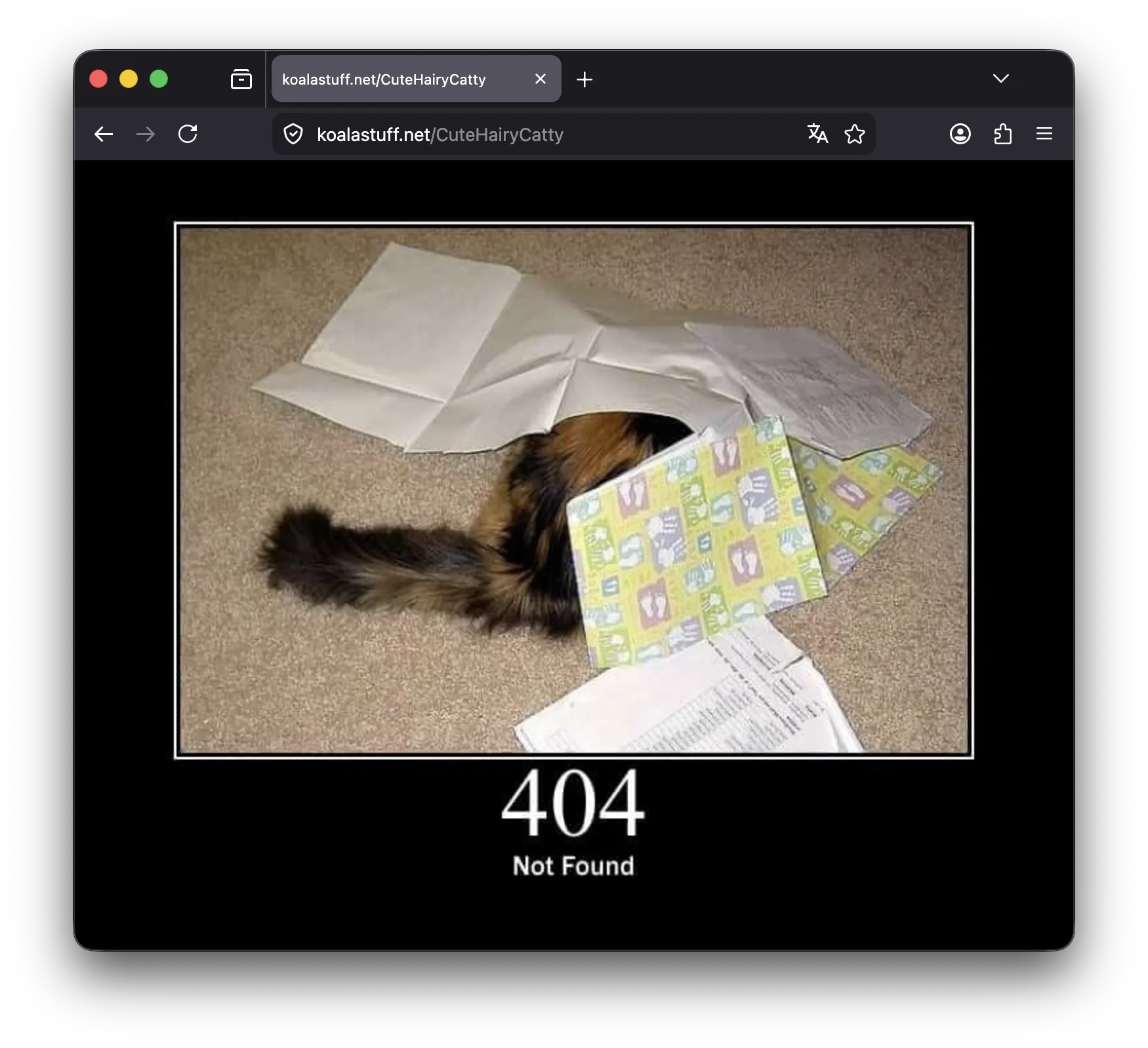
(cat_errors) {
    handle_errors {
        header Content-Type "text/html; charset=utf-8"
        respond "<body style='margin:0;background:#000;display:flex;justify-content:center;align-items:center;height:100vh;'><img src='https://http.cat/{http.error.status_code}' alt='HTTP Cat Status' title='HTTP Cat Status'></body>" {http.error.status_code}
    }
}
The interesting part is this placeholder:
{http.error.status_code}If the error is 404, it shows the 404 cat.
If it is 502, it shows the 502 cat.
It is not some serious enterprise error page. It is just a small thing that makes my sites feel a little more like mine.
And because it is a snippet, I can include it through my base snippet and forget about it.
One thing to keep in mind: if you use a strict Content Security Policy, you have to allow http.cat as an image source.
For example:
header { Content-Security-Policy "default-src 'self'; img-src 'self' data: blob: https://http.cat; object-src 'none'; frame-ancestors 'none';"}Without this, the browser may block the cat image and you will see something like this in the console:
Loading the image 'https://http.cat/404' violates the following Content Security Policy directive: "img-src 'self' data: blob:"So if you use the http.cat error handler, remember to add https://http.cat to every img-src directive where the custom error page should work.
JSON access logs
For logs, I use another snippet:
(json_log) {
    log {
        output file /var/log/caddy/{args.0}.access.log {
            roll_size 15mb
            roll_keep 3
        }
        format json
    }
}
The {args.0} part is useful.
It lets me import the snippet with a name:
blog.example.com {
    import json_log blog
    import base
    reverse_proxy ghost_blog:2368
}
That creates a log file like:
/var/log/caddy/blog.access.logFor another site:
status.example.com {
    import json_log status
    import base
    reverse_proxy uptime-kuma:3001
}
That gets:
/var/log/caddy/status.access.logI also limit log file size:
roll_size 15mb
roll_keep 3
That way logs do not just grow forever.
You do not need JSON logs on day one. But once you run a few services, separate logs per subdomain are very nice to have.
Serving static sites with Caddy
Not every project needs a backend container. Oftentimes, you just want to serve a website that consists entirely of static files without any backend logic at all.
Some of my KoalaStuff pages are exactly that. This could be a simple, handwritten landing page or documentation. But this is also how you host the output of modern static site generators. If you build slightly more complex sites using frameworks like Astro or Svelte (with their static adapters), you also end up with a simple folder of static files that just need to be served.
A simple static site block looks like this:
sync.example.com {
    import base
    root * /var/www/sync
    file_server
}
root tells Caddy where the files are.
file_server tells Caddy to serve them.
So when someone visits:
https://sync.example.comCaddy serves files from:
/var/www/syncThis is great for small frontends, documentation pages, landing pages, tools and static builds.
Static asset caching
For static sites, I use a snippet for file handling and asset caching:
(static_assets) {
    file_server {
        hide .*
        precompressed zstd br gzip
    }
    @static {
        file
        path *.ico *.css *.js *.png *.svg *.webp *.avif *.woff *.woff2 *.ttf *.jpg
        not path /sw.js
    }
    header @static Cache-Control "public, max-age=31536000, immutable"
}
This does a few things.
hide .* stops hidden files from being served. That is useful because you usually do not want files like .env or .git to ever be reachable.
precompressed zstd br gzip lets Caddy serve already-compressed files if they exist.
The @static matcher selects common static assets like CSS, JS, images and fonts.
Then this line adds long-term caching:
header @static Cache-Control "public, max-age=31536000, immutable"That tells the browser it can keep those assets for a long time.
This works best when your build output uses hashed file names like:
app.8f3a2c.js
style.91db0.css
Because when the file changes, the filename changes too.
Do not cache your service worker forever
One file I do not want to cache forever is the service worker.
For example:
@sw path /sw.js
header @sw Cache-Control "no-cache, no-store, must-revalidate"
Service workers can be annoying if the browser keeps an old version around for too long.
Normal assets can be cached aggressively.
The service worker should usually be checked more carefully.
That is why my static asset snippet excludes /sw.js:
not path /sw.jsAnd then I handle /sw.js separately.
Static sites with SPA routing
Many modern frontend apps have client-side routes.
For example:
https://sync.example.com/settingsThere may not be a real /settings file on disk. The frontend app handles that route in the browser.
Without a fallback, refreshing that URL can cause a 404.
For that, I use this snippet:
(spa) {
    try_files {path} {path}/index.html {path}.html {path}/
}
Then a static frontend can look like this:
sync.example.com {
    import json_log sync
    import base
    import static_assets
    import spa

    root * /var/www/sync
}
This tells Caddy to try the requested path first, but also fall back to HTML files when needed.
For simple static sites, you might not need this.
For frontend apps, it can save you from weird refresh-page 404s.
Reverse proxying real Docker services
Some projects are not static files. They are actual web apps running in containers.
For those, I use reverse_proxy.
A Ghost blog could look like this:
blog.example.com {
    import json_log blog
    import base
    reverse_proxy ghost_blog:2368
}
Uptime Kuma:
status.example.com {
    import json_log status
    import base
    reverse_proxy uptime-kuma:3001
}
An auth service:
auth.example.com {
    import json_log auth
    import base
    reverse_proxy auth-service:8000
}
This is the same pattern again and again.
That is why I like Caddy for small projects. A new subdomain is often just four lines.
Forwarded headers
Sometimes I explicitly pass headers to the upstream app:
timer.example.com {
    import base

    reverse_proxy timer-service:3001 {
        header_up Host {host}
        header_up X-Forwarded-For {remote_host}
        header_up X-Real-IP {remote_host}
    }
}
This can help the app know which host was requested and what the real client IP was.
Not every app needs you to set these manually, but some apps behave better when they receive the expected forwarded headers.
Content Security Policy per site
I do not put my Content Security Policy into the global base snippet.
The reason is simple: different apps need different rules.
A very simple static site can have a strict policy:
header {
    Content-Security-Policy "default-src 'self'; script-src 'self'; style-src 'self' 'unsafe-inline'; img-src 'self' data:; object-src 'none'; frame-ancestors 'none'; base-uri 'none'; form-action 'none';"
}
But another app may need external images, WebSocket connections, iframes, maps or API calls.
For example, a timer/watch-party app might need YouTube or Twitch frames:
frame-src 'self' https://player.twitch.tv https://www.youtube.com;A map-based app might need map tiles:
img-src 'self' data: blob: https://*.basemaps.cartocdn.com;That is why CSP should not be treated as one universal copy-paste block.
My base snippet handles the simple shared headers.
CSP stays close to the app that actually needs it.
Proxying external APIs through Caddy
Caddy can also proxy small API routes. I use this when a frontend should call my own domain, while Caddy forwards the request to an external API in the background.
For example, a small weather endpoint could look like this:
rewrite /api/weather /v1/forecast?latitude=52.37&longitude=9.73¤t=temperature_2m,weather_code&daily=weather_code,temperature_2m_max,temperature_2m_min&timezone=auto&forecast_days=3
reverse_proxy /v1/forecast* https://api.open-meteo.com {
header_up Host {upstream_hostport}
}Now the frontend can simply call:
/api/weatherCaddy takes that request and sends it to the external weather API. The frontend does not need to know the full external URL, and the JavaScript code stays a bit cleaner because it only talks to my own domain.
A nice side effect is that this also helps with security. If the browser only calls my own domain, I can keep my Content Security Policy much stricter. For example, the frontend may only need this:
header {
    Content-Security-Policy "default-src 'self'; connect-src 'self';"
}
Without the proxy, I would have to allow the external API directly in connect-src. That is not always a huge problem, but I prefer keeping the browser-facing side as small and strict as possible.
This pattern is also useful for frontend-only projects where you do not want to put API keys into the JavaScript bundle. Instead of shipping the key to every visitor, Caddy can add it on the server side:
reverse_proxy /api/example* https://api.example.com {
    header_up Host {upstream_hostport}
    header_up Authorization "Bearer {$EXAMPLE_API_KEY}"
}
With this setup, the API key lives on the server and the browser never receives it directly. Of course, this does not magically make a public endpoint private. If everyone can call /api/example, they can still use your API key indirectly through your server. For expensive or sensitive APIs, you would still want authentication, rate limiting, or a proper backend. But for small API calls, it is a very handy middle ground.
Another small privacy benefit is that the actual external API request is made by the server running Caddy. So the external service sees the request coming from your server IP, not as a direct browser request from the visitor. If you care about not forwarding the original client IP in proxy headers either, you can remove those headers explicitly, but for most simple use cases I would keep the basic example clean and only add that when needed.
API route example with handle_path
For my small ship/map simulation, I use handle_path for route and tile proxying.
A simplified route proxy looks like this:
handle_path /api/route/* {
    rewrite * /route/v1/driving{uri}

    reverse_proxy https://router.project-osrm.org {
        header_up Host {upstream_hostport}
        header_up -X-Forwarded-For
        header_up -X-Real-IP
    }

    header Cache-Control "private, max-age=300"
}
The app calls something under:
/api/route/Caddy rewrites it and proxies it to OSRM.
For map tiles, the pattern is similar:
handle_path /api/tiles/light/* {
    rewrite * /light_all{uri}

    reverse_proxy https://a.basemaps.cartocdn.com {
        header_up Host {upstream_hostport}
        header_up -X-Forwarded-For
        header_up -X-Real-IP
    }

    header Cache-Control "public, max-age=86400"
}
This is already a more advanced use case, but it is still readable once you understand the building blocks:
- match a path
- rewrite the path
- reverse proxy to another service
- set caching headers
That is basically it.
Redirects
Redirects are also very simple in Caddy.
Redirect www to the root domain:
www.example.com {
    redir https://example.com
}
Redirect an old subdomain to a new one:
old.example.com {
    redir https://new.example.com
}
Redirect multiple subdomains to the same target:
support.example.com, donate.example.com {
    redir https://ko-fi.com/yourname
}
Keep the original path with {uri}:
google.example.com {
    redir https://google.com{uri}
}
So:
https://google.example.com/search?q=caddybecomes:
https://google.com/search?q=caddyRedirects are one of those small things that make Caddy really comfortable for personal projects.
Global options
At the top of my Caddyfile, I also have a global options block:
{
    admin localhost:2019

    metrics {
        per_host
    }
}
The global block applies to Caddy itself, not one specific domain.
The metrics part is useful for monitoring.
The admin part exposes Caddy’s admin API on port 2019.
Important: do not expose the admin API publicly without thinking. In my setup, this is meant for internal use and should be protected by network rules, firewall rules or Docker networking. If you do not need it, do not enable it like this.
A beginner Caddyfile does not need this block.
A clean beginner Caddyfile
If you are just starting, I would not begin with the full setup.
Start with something like this:
my.domain.com {
    encode zstd gzip

    header {
        X-Content-Type-Options "nosniff"
        Referrer-Policy "strict-origin-when-cross-origin"
        -Server
    }

    reverse_proxy my-app:3000
}
That is already a good first setup.
Then add more only when you actually need it.
A more reusable Caddyfile
Once you have multiple subdomains, move repeated config into snippets:
(json_log) {
    log {
        output file /var/log/caddy/{args.0}.access.log {
            roll_size 15mb
            roll_keep 3
        }
        format json
    }
}

(base) {
    encode zstd gzip

    header {
        X-Content-Type-Options "nosniff"
        Referrer-Policy "strict-origin-when-cross-origin"
        -Server
    }
}

blog.example.com {
    import json_log blog
    import base
    reverse_proxy ghost_blog:2368
}

status.example.com {
    import json_log status
    import base
    reverse_proxy uptime-kuma:3001
}
This is the point where your Caddyfile starts feeling organized instead of copy-pasted.
A static frontend example
For a static frontend app:
(static_assets) {
    file_server {
        hide .*
        precompressed zstd br gzip
    }

    @static {
        file
        path *.ico *.css *.js *.png *.svg *.webp *.avif *.woff *.woff2 *.ttf *.jpg
        not path /sw.js
    }

    header @static Cache-Control "public, max-age=31536000, immutable"
}

(spa) {
    try_files {path} {path}/index.html {path}.html {path}/
}

app.example.com {
    import base
    import static_assets
    import spa

    root * /var/www/app

    @sw path /sw.js
    header @sw Cache-Control "no-cache, no-store, must-revalidate"
}
This is the setup I would use for many small static apps:
- serve files from
/var/www/app - cache assets aggressively
- do not aggressively cache the service worker
- support frontend routing
A more real-world example
Putting the ideas together, a bigger setup can look like this:
{
    metrics {
        per_host
    }
}

(json_log) {
    log {
        output file /var/log/caddy/{args.0}.access.log {
            roll_size 15mb
            roll_keep 3
        }
        format json
    }
}

(cat_errors) {
    handle_errors {
        header Content-Type "text/html; charset=utf-8"
        respond "<body style='margin:0;background:#000;display:flex;justify-content:center;align-items:center;height:100vh;'><img src='https://http.cat/{http.error.status_code}' alt='HTTP Cat Status' title='HTTP Cat Status'></body>" {http.error.status_code}
    }
}

(base) {
    import cat_errors
    encode zstd gzip

    header {
        Strict-Transport-Security "max-age=31536000; includeSubDomains; preload"
        X-Frame-Options "SAMEORIGIN"
        X-Content-Type-Options "nosniff"
        Referrer-Policy "strict-origin-when-cross-origin"
        -Server
    }
}

(static_assets) {
    file_server {
        hide .*
        precompressed zstd br gzip
    }

    @static {
        file
        path *.ico *.css *.js *.png *.svg *.webp *.avif *.woff *.woff2 *.ttf *.jpg
        not path /sw.js
    }

    header @static Cache-Control "public, max-age=31536000, immutable"
}

(spa) {
    try_files {path} {path}/index.html {path}.html {path}/
}

example.com {
    import json_log landing
    import base
    import static_assets
    import spa

    root * /var/www/landing

    header {
        Content-Security-Policy "default-src 'self'; script-src 'self'; style-src 'self' 'unsafe-inline'; img-src 'self' data: blob:; object-src 'none'; frame-ancestors 'none'; base-uri 'none'; form-action 'none';"
    }
}

blog.example.com {
    import json_log blog
    import base
    reverse_proxy ghost_blog:2368
}

status.example.com {
    import json_log status
    import base
    reverse_proxy uptime-kuma:3001
}

app.example.com {
    import json_log app
    import base
    import static_assets
    import spa

    root * /var/www/app

    @sw path /sw.js
    header @sw Cache-Control "no-cache, no-store, must-revalidate"
}

www.example.com {
    redir https://example.com
}
This looks much bigger than the first example, but it is still built from the same small pieces.
That is the main trick.
Do not try to write the final version on day one.
Start with:
my.domain.com {
    reverse_proxy my-app:3000
}
Then add compression, headers, snippets, logs, static asset handling.
After that you can focus on your CSP rules per app.
And finally add API proxying if you need it.
Caddy stays readable as long as you keep the repeated parts in snippets and avoid turning every site block into a wall of copy-pasted config.
Best practices I would actually recommend
These are the small habits I would actually recommend after using Caddy for a while:
-
Use Docker networks intentionally.
If Caddy should talk to a container by name, put both containers in the same Docker network. Otherwise, use the server IP or the container IP directly. -
Start with the smallest config that works.
Do not copy a huge Caddyfile from someone else and paste it straight into production. Start with one working site block and add the extra parts one by one. -
Use snippets once you repeat yourself.
If the same headers, logging setup, or error handling appears in multiple site blocks, it probably belongs in a snippet. -
Do not use one CSP for everything.
A strict static site and a media app with iframes do not need the same Content Security Policy. Keep each policy as strict as possible, but only as strict as that specific app can handle. -
Be careful with HSTS preload.
HSTS is useful, but only enable the stronger options once you are sure all important subdomains work correctly over HTTPS. Otherwise, you can lock yourself into a broken setup. -
Cache static assets, but not your service worker forever.
Long cache times are great for hashed files like CSS, JavaScript, fonts, and images. They are not great for/sw.js, because an old service worker can make debugging very annoying. -
Keep the admin API private.
If you enable Caddy’s admin API, make sure it is not exposed to the public internet. It should only be reachable locally or from a trusted internal network. -
Use separate logs when you run many subdomains.
Debugging is much easier whenblog,status,app, andauthdo not all end up in the same messy log file.
Final thought
The reason I like Caddy is not only that the first setup is easy.
It is that the simple setup can grow into a real one without turning into an unreadable nightmare you cannot easily expand on.